Google Slides How To Change Slide Size

Ever made a slide deck that looked perfect on your laptop, then turned into a squished mess on a projector? That’s usually not your design skills. It’s the slide size. Google...

Ever made a slide deck that looked perfect on your laptop, then turned into a squished mess on a projector? That’s usually not your design skills. It’s the slide size.
Google Slides starts you off with a widescreen shape, usually 16:9. Think of that as a TV screen. But you can change it to something else in just a few clicks.
Why slide size is a bigger deal than it sounds
Slide size is the canvas for everything you build. It decides how much room your text, images, and charts get. Choose the wrong shape, and your whole deck feels cramped or stretched.
Must Read
It’s like picking a frame before you paint. A square frame and a long rectangle frame change the whole picture. Same content, totally different vibe.
Maybe you’re presenting on a modern monitor, printing handouts, or making a vertical story for social media. Each job wants its own shape.
How to change slide size in Google Slides
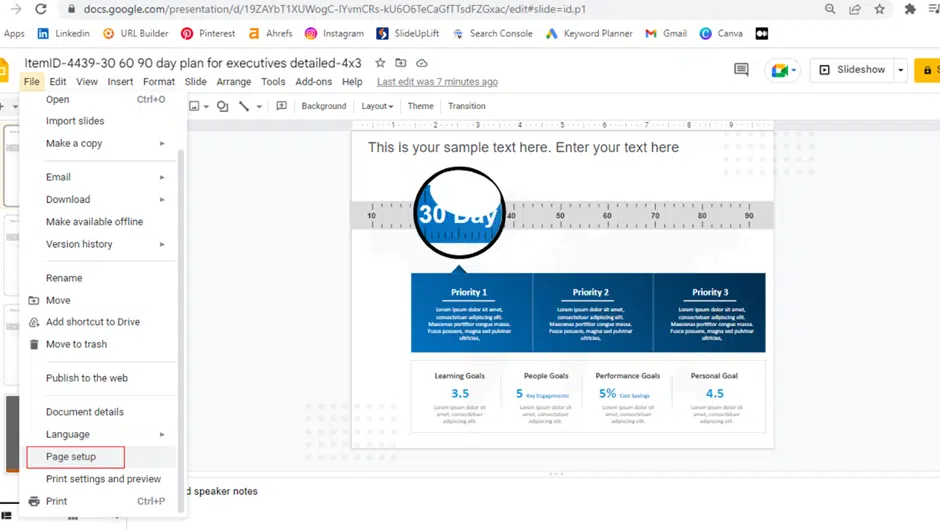
Open your presentation. Click File in the top menu. Then choose Page setup.
A small window pops up. You’ll see a dropdown menu with options like Widescreen (16:9) and Standard (4:3). Pick the one you want, then hit OK.
That’s it. No secret menu, no plugin, no drama. Google Slides applies the new size to the entire deck, not just one slide.
Wait, can I change only one slide?
Not really. Google Slides uses one size for the whole presentation. So you can’t mix a wide slide and a tall slide in the same file.
It’s like a notebook where every page must be the same shape. If you need different sizes, make separate presentations, then link or embed them.
 Learn How To Change The Size Of The Slide In Google Slides
Custom sizes: when the usual options aren’t enough
Choose Custom in the Page setup dropdown. Now you can type your own width and height. You can also pick units like inches, centimeters, points, or pixels.
This is where things get fun. Want a square post for Instagram? Set a 1:1 ratio.
Want a tall story or a poster? Try 9:16, or a custom size for certificates.
Just remember: Google Slides is still a slideshow tool. It’s not a full graphic design studio. But for quick, clean layouts, custom size is surprisingly handy.
What happens to your content after the switch?
Changing slide size doesn’t magically rearrange everything. Text boxes may shift, and images may sit off-center. Shapes may look like they’ve been through a mild earthquake.
It’s like moving furniture into a new apartment. Same couch, same lamp, but somehow the room feels different. So give every slide a quick check after resizing.
If something looks wrong, undo it or move things manually. You can also resize images and text boxes by dragging their corners. A few minutes of cleanup saves a lot of awkwardness later.
 How to Change Google Slides Dimensions Step by Step
Simple tips to avoid a slide-size headache
Decide your size before you design. That’s the easiest path. If you must switch later, do it early, before you’ve placed a hundred tiny details.
Make a copy of your deck before changing size. That way your original stays safe. And if you need multiple formats, build separate versions from the start.
Use guides and alignment tools to keep things neat. For videos or modern screens, 16:9 is usually great. For older projectors or printed handouts, 4:3 can feel more natural.
Why this tiny setting feels oddly satisfying
Changing slide size is like changing the shape of a window. The view stays the same, but the frame changes everything. A 4:3 deck feels nostalgic, like an old TV.
A 16:9 deck feels cinematic. A vertical deck feels like a phone screen in your hand.
That’s a lot of power for one dropdown menu. So next time your slides look off, don’t rebuild from scratch. Check File > Page setup.
It’s a tiny setting with a big effect. And it takes less time than making coffee.
Play with the size. Your canvas, your call.
