How To Shrink The Google Search Bar

So you want to shrink the Google search bar. Maybe it’s hogging your home screen like a golden retriever on a sofa. Or maybe it’s just too loud for your minimalist vibe. Good...

So you want to shrink the Google search bar. Maybe it’s hogging your home screen like a golden retriever on a sofa. Or maybe it’s just too loud for your minimalist vibe.
Good news: sometimes you can. Bad news: sometimes Google has other plans. The trick is figuring out which search bar you’re staring at.
Here’s a surprising fact: Google handles more than 8.5 billion searches a day. That makes the search bar one of the busiest doorways on Earth, even if it’s currently ruining your wallpaper.
Must Read
First, Identify Your Search Bar
There are at least three common Google search bars: a home-screen widget on Android, the search box inside the Google app, and the address bar in Chrome, often called the omnibox. They look similar, but they obey different rules. Shrinking one might be as easy as dragging a corner, while shrinking another might be impossible without swapping browsers or launchers.
The Android Home-Screen Widget
This is the famous bar that sits at the bottom of many Android phones. On some devices, it’s a widget you can long-press like a suspicious text message. On others, it’s baked into the launcher like cheese in a quesadilla.
Try this: press and hold the Google search bar. If you see resize handles, congratulations. Drag them inward until the bar looks less like a billboard and more like a polite little sign.
If you see Remove but no handles, your launcher is saying no. You can still remove the widget and add a smaller one, or switch to a launcher like Nova, Action Launcher, or Lawnchair that allows resizing.
On a Pixel, the bottom search bar is often part of the Pixel Launcher. You may not be able to resize or remove it without a third-party launcher. Yes, that’s annoying—and no, yelling at it won’t help, though it feels great.
The Google App Widget
If you added a Google search widget from the widget picker, you have more control. Long-press it, then look for a pencil, settings, or resize option. Drag the edges to make it smaller.
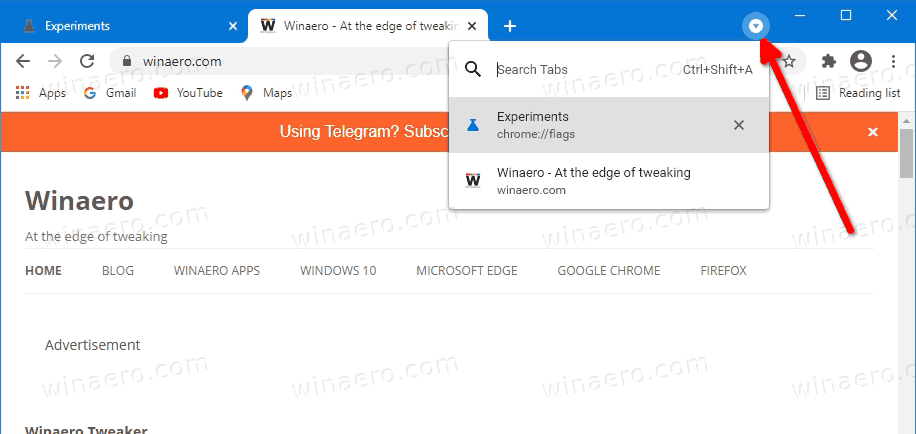 Remove Search Tabs Button from Google Chrome Title Bar
Some versions offer multiple widget shapes. A 2x1 widget is basically the compact car of search bars. A 4x1 widget is the stretch limo that blocks the driveway.
If the widget refuses to shrink, delete it. Then re-add a smaller version from the widgets menu. It’s like returning a giant coat and asking for a medium.
Chrome’s Address Bar (The Omnibox)
On desktop Chrome, the address bar is not a resizable widget. It stretches across the top like it pays rent. You can’t shrink it with a drag, but you can make it feel smaller.
Try hiding the bookmarks bar with Ctrl+Shift+B on Windows or Command+Shift+B on Mac. Use full-screen mode with F11 or Control+Command+F. That gives the bar less visual competition.
You can also enable Chrome’s compact mode if available. It tightens up toolbars and tabs. It won’t turn the omnibox into a keychain, but it helps.
On Chrome mobile, the address bar can sometimes be moved to the bottom. On Android, tap the three-dot menu, then Settings, then Address bar. On iPhone, it may be under Settings > Address Bar, and moving it doesn’t shrink it but changes how much it bothers you.
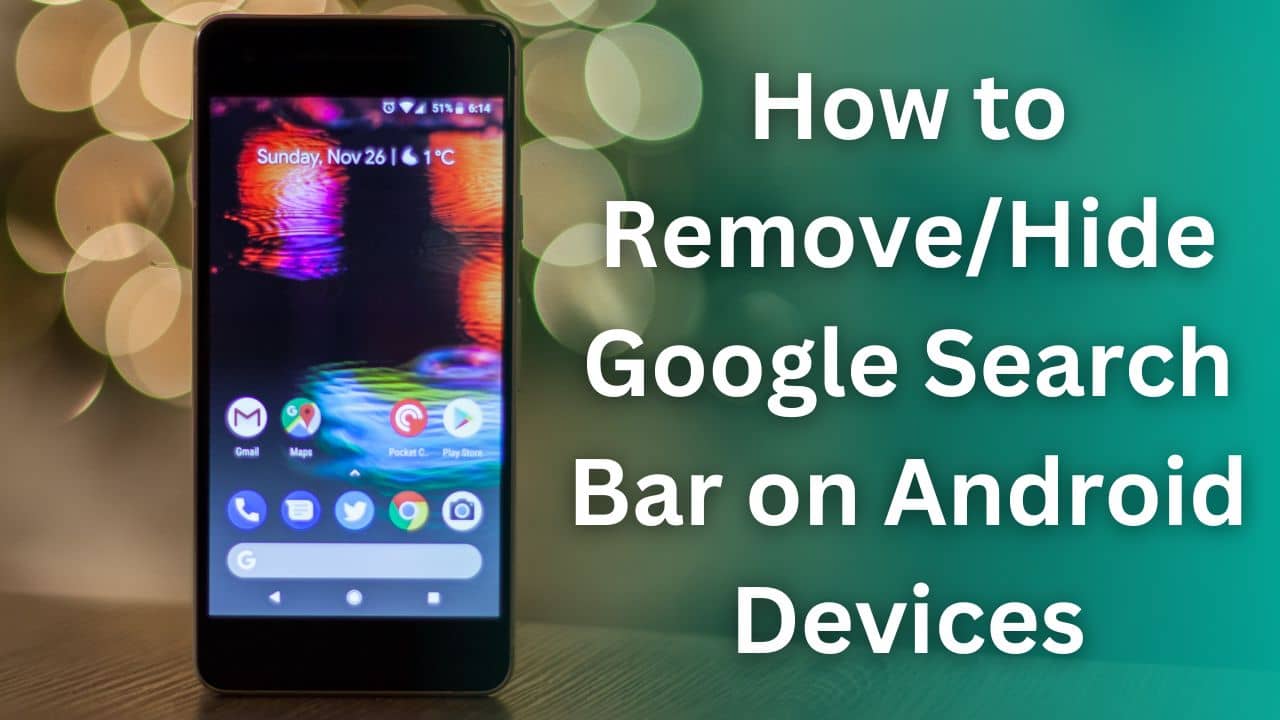 4 Ways to Remove Google Search Bar on Android Devices - TechieTechTech
iPhone and iPad Widgets
On iOS, Google search usually lives in a widget or the Google app. You can remove a widget by long-pressing it and choosing Remove Widget. You can’t drag its corners like a window on a computer.
If you want a smaller search experience, try the Google app’s search bar inside the app. Or use Spotlight by swiping down on the home screen. Spotlight is Apple’s search, but it’s sleek and doesn’t take up space.
For a smaller Google widget, look for the smallest available size. Widgets come in small, medium, and large. Choose small, then resist the urge to add eleven more.
If All Else Fails
Use a different launcher. Nova Launcher, Microsoft Launcher, and Lawnchair often let you resize widgets more freely. You can also remove the search bar entirely and rely on a swipe gesture or an app icon.
Another option: use a browser with a more flexible interface. Firefox, Vivaldi, and Samsung Internet all do things their own way. One of them might fit your screen better.
And remember: the Google search bar is not a plant. You can’t shrink it by whispering nice things. You also can’t feed it less sunlight, though that would be funny.
At the end of the day, a search bar is just a doorway to the internet. If it’s too big, find a smaller door. If you can’t, redecorate around it and pretend it’s an architectural feature.
